01
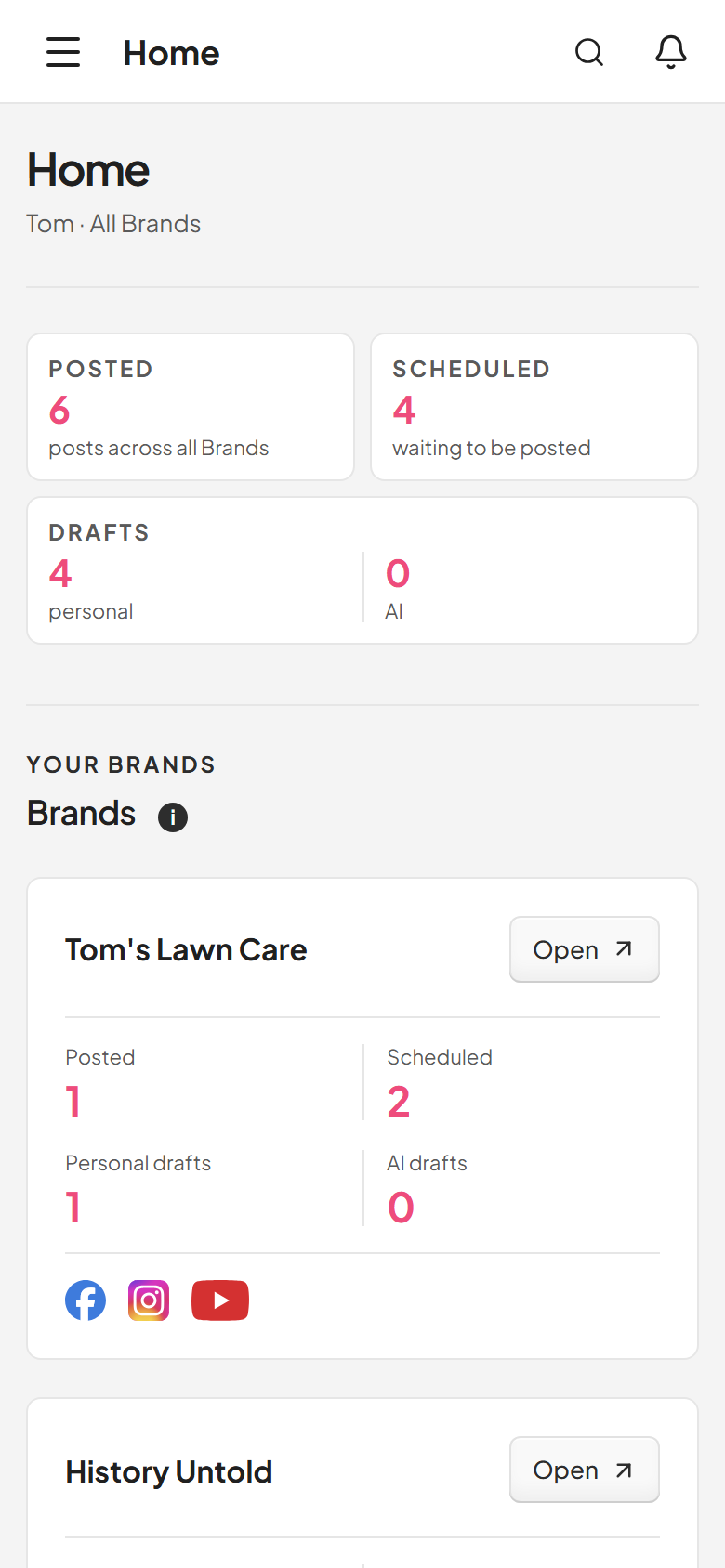
Home: every Brand at a glance
Posted, scheduled and drafts for all your Brands on one screen. Open a Brand with one click.

 Blimpkin
Tour
No demo to book and no one to talk to. Here's the app, screen by screen, so you know exactly what you're getting.
Questions? Contact support@blimpkin.com
These are real screens from the app, filled with made-up example Brands.
01
Posted, scheduled and drafts for all your Brands on one screen. Open a Brand with one click.
02
What's posted, what's scheduled next and which accounts are connected. If something needs you, it says so here in plain words; if not, it says “Nothing needs you.”

03
Tick where it goes, write it, pick a time. The checklist on the right tells you when it's ready, and the preview shows how long it is for each platform.

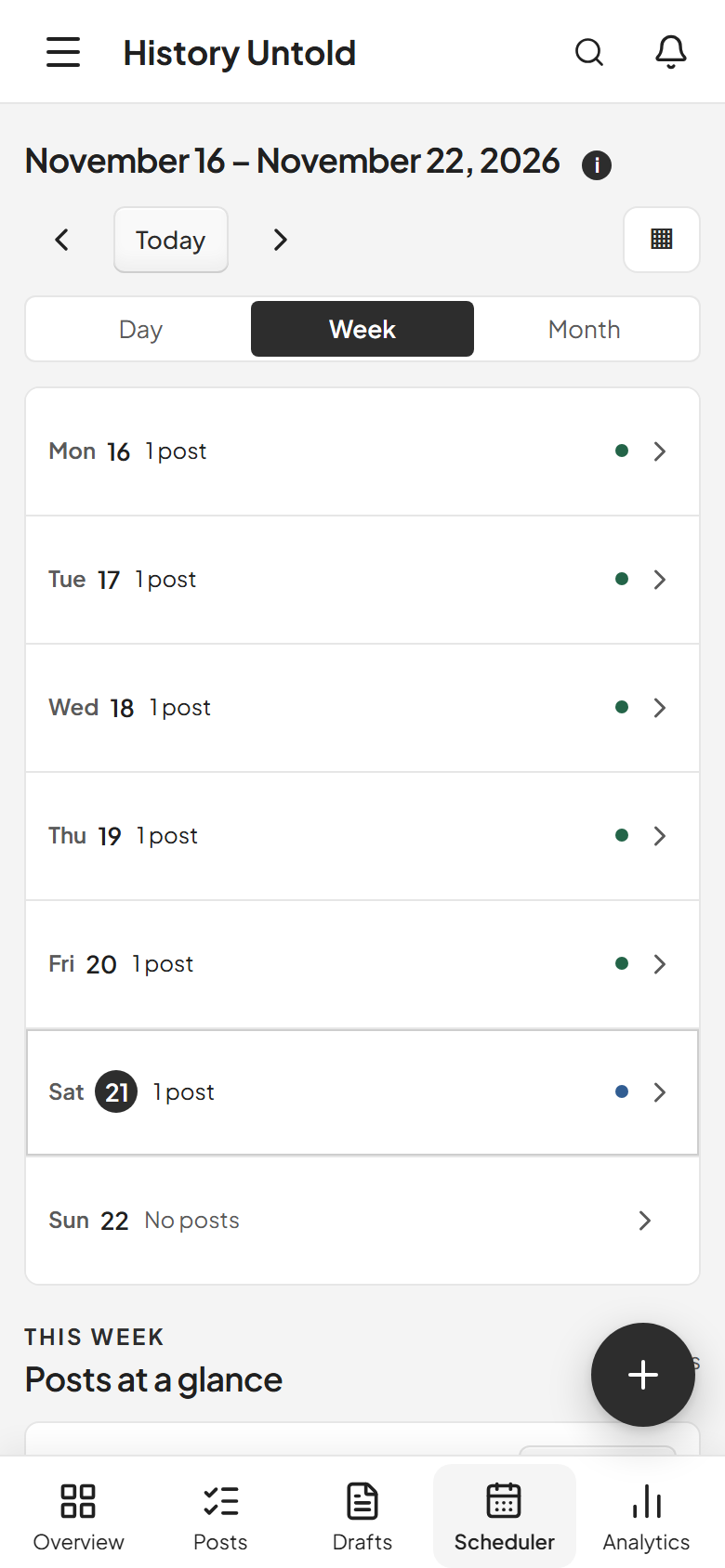
04
Day, week or month. Every post sits on its day with its platform and time, and a list underneath gives you the whole week at a glance.

05
Search, or narrow it down by status, platform, tag or date. Each post shows where it went and whether it posted.

06
Your own drafts and any your AI writes sit together, and nothing goes out until you schedule it.

07
Drafts, posts that need a look, scheduled and confirmed published. Counts, not confusing graphs, plus whether automatic posting is running.

08
Each account says whether it's ready and when it was last checked. Reconnect it with one button if it ever needs it.

09
Connect the assistant you already use and let it write drafts for you to approve. It never posts on its own and never sees your logins.

Nothing to install. Open Blimpkin in your phone's browser and everything is there, with the main pages one tap away at the bottom.
The tour on this page shows every main screen of the app. There's no sales call and no demo to book. Questions? Contact support@blimpkin.com.
No. There's no appointment to book and no one will call you. If you'd like to ask something first, email us and a real person will reply.
Yes. They're taken straight from the app, with made-up example Brands so no one's real account is shown.
Get in touch
Contact support@blimpkin.com.
Already have an account? Sign in
New post
 Facebook
 Instagram